
Для автоматизации повторяющихся задач в Microsoft Excel можно быстро записать макрос. Предположим, у вас есть даты в различном формате и вы хотите применить ко всем из них один формат. Это можно сделать с помощью макроса. Вы можете записать макрос, который применяет нужный формат, а затем запускать его при необходимости.
При записи макроса все действия в записи макроса записываются Visual Basic для приложений (VBA) коде. Эти действия могут включать ввод текста или чисел, выбор ячеек или команд на ленте или в меню, форматирование ячеек, строк или столбцов или даже импорт данных из внешнего источника, скажем, Microsoft Access. Visual Basic Приложение (VBA) — это подмножество мощного Visual Basic программирования, которое входит в большинство Office приложений. Хотя VBA позволяет автоматизировать процессы как в приложениях, так и между Office, необязательно знать код VBA или программирование на компьютере, если оно делает то, что вам нужно.
Важно знать, что при записи макроса регистрируются почти все ваши действия. Поэтому если вы допустите ошибку, например нажмете не ту кнопку, средство записи макросов зарегистрирует это действие. В таком случае можно снова записать всю последовательность или изменить код VBA. Поэтому перед записью процесса следует хорошо проработать его. Чем точнее вы запишете последовательность, тем более эффективно будет работать макрос.
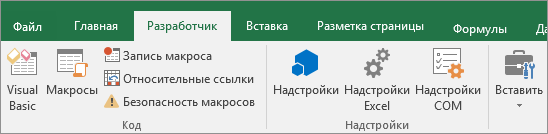
Макросы и средства VBA находятся на вкладке Разработчик, которая по умолчанию скрыта, поэтому сначала нужно включить ее. Дополнительные сведения см. в статье Отображение вкладки «Разработчик».
Запись макроса
Перед записью макросов полезно знать следующее:
-
Макрос, записанный для работы с диапазоном Excel, будет выполняться только для ячеек этого диапазона. Поэтому если вы добавите в диапазон новую строку, макрос не будет применяться к ней.
-
Если вам нужно записать длинную последовательность задач, советуем вместо этого использовать несколько более мелких макросов.
-
В макросе могут содержаться и задачи, не относящиеся к Excel. Процесс макроса может охватывать прочие приложения Office и другие программы, которые поддерживают Visual Basic для приложений (VBA). Например, вы можете записать макрос, который сначала обновляет таблицу в Excel, а затем открывает Outlook для ее отправки по электронной почте.
Чтобы записать макрос, следуйте инструкциям ниже.
-
На вкладке Разработчик в группе Код нажмите кнопку Запись макроса.
-ИЛИ-
Нажмите ALT+T+M+R.

-
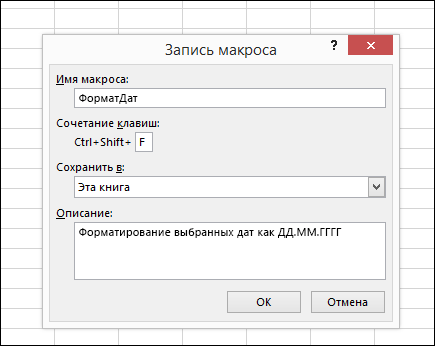
В поле Имя макроса введите название макроса. Сделайте имя понятным, чтобы можно было быстро найти нужный макрос.
Примечание: Первым символом имени макроса должна быть буква. Последующие символы могут быть буквами, цифрами или знаками подчеркивания. В имени макроса не должно содержаться пробелов; в качестве разделителей слов следует использовать знаки подчеркивания. Если используется имя макроса, являющееся ссылкой на ячейку, может появиться сообщение об ошибке, указывающее на недопустимое имя макроса..
-
Чтобы назначить сочетание клавиш для запуска макроса, в поле Сочетание клавиш введите любую строчную или прописную букву. Рекомендуется использовать сочетания клавиш с CTRL+SHIFT, так как они будут заменять собой совпадающие с ними стандартные сочетания клавиш в Excel, пока открыта книга, содержащая макрос. Например, если назначить сочетание клавиш CTRL+Z (Отменить), вы не сможете использовать его для функции «Отменить» в данном экземпляре Excel.
-
В списке Сохранить в выберите книгу, в которой вы хотите сохранить макрос.
Как правило, макрос сохраняется в расположении Эта книга, но если вы хотите, чтобы макрос был доступен при использовании Excel, выберите Личная книга макроса . При выборе личнойкниги макроса Excel создает скрытую личную книгу макроса (Personal.xlsб), если она еще не существует, и сохраняет макрос в этой книге.
-
В поле Описание при необходимости введите краткое описание действий макроса.
Хотя поле «Описание» является необязательным, рекомендуется его заполнить. Кроме того, желательно ввести понятное описание, которое будет полезно вам и всем, кто запускает макрос. Если у вас много макросов, описания помогут быстро определить, для чего они нужны.
-
Чтобы начать запись макроса, нажмите кнопку ОК.
-
Выполните действия, которые нужно записать.
-
На вкладке Разработчик в группе Код нажмите кнопку Остановить запись
.-ИЛИ-
Нажмите ALT+T+M+R.
 .
.Работа с макросами, записанными в Excel
На вкладке Разработчик щелкните Макросы, чтобы просмотреть макросы, связанные с книгой. Кроме того, можно нажать клавиши ALT+F8. При этом откроется диалоговое окно Макрос.
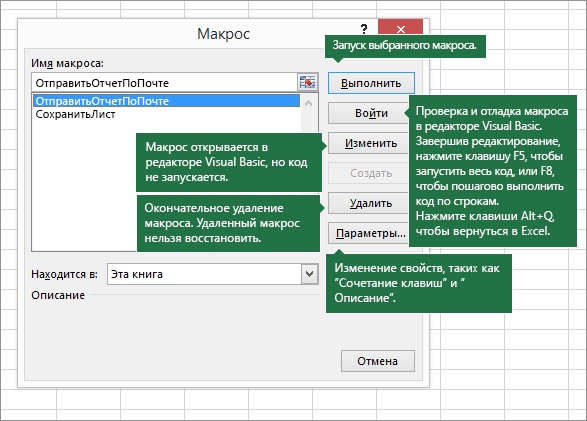
Внимание: Макросы нельзя отменить. Прежде чем впервые запускать записанный макрос, сохраните книгу или создайте ее копию, чтобы предотвратить внесение нежелательных изменений. Если вас не устраивают результаты выполнения макроса, вы можете закрыть книгу, не сохраняя ее.
Ниже приведены дополнительные сведения о работе с макросами в Excel.
|
Задача |
Описание |
|
Изменение параметров безопасности макросов в Excel |
Сведения о параметрах безопасности макросов и их значении. |
|
Запуск макроса |
Макросы можно запускать различными способами, например с помощью сочетания клавиш, графического объекта, панели быстрого доступа, кнопки или даже при открытии книги. |
|
Изменение макроса |
С помощью редактора Visual Basic можно изменять макросы, присоединенные к книге. |
|
Копирование модуля макроса в другую книгу |
Если книга содержит макрос VBA, который нужно использовать где-либо еще, этот модуль можно скопировать в другую книгу с помощью редактора Microsoft Visual Basic. |
|
Назначение макроса объекту, фигуре или графическому элементу |
|
|
Назначение макроса кнопке |
Вы можете назначить макрос значку и добавить его на панель быстрого доступа или ленту. |
|
Назначение макроса для элемента управления на листе |
Вы можете назначать макросы формам и элементам ActiveX на листе. |
|
Включение и отключение макросов в файлах Office |
Узнайте, как включать и отключать макросы в файлах Office. |
|
Открытие редактора Visual Basic |
Нажмите клавиши ALT+F11. |
|
Поиск справки по использованию редактора Visual Basic |
Узнайте, как найти справку по элементам Visual Basic. |
Работа с записанным кодом в редакторе Visual Basic (VBE)
С помощью редактора Visual Basic (VBE) вы можете добавлять в записанный код собственные переменные, управляющие структуры и другие элементы, которые не поддерживает средство записи макросов. Так как средство записи макросов фиксирует почти каждый шаг, выполняемый во время записи, может также потребоваться удалить ненужный код. Просмотр записанного кода — отличный способ научиться программировать на VBA или отточить свои навыки.
Пример изменения записанного кода можно найти в статье Начало работы с VBA в Excel.
Запись макроса
Перед записью макросов полезно знать следующее:
-
Макрос, записанный для работы с диапазоном Excel, будет выполняться только для ячеек этого диапазона. Поэтому если вы добавите в диапазон новую строку, макрос не будет применяться к ней.
-
Если вам нужно записать длинную последовательность задач, советуем вместо этого использовать несколько более мелких макросов.
-
В макросе могут содержаться и задачи, не относящиеся к Excel. Процесс макроса может охватывать прочие приложения Office и другие программы, которые поддерживают Visual Basic для приложений (VBA). Например, вы можете записать макрос, который сначала обновляет таблицу в Excel, а затем открывает Outlook для ее отправки по электронной почте.
Макросы и средства VBA находятся на вкладке Разработчик, которая по умолчанию скрыта, поэтому сначала нужно включить ее.
-
Перейдите в Excel > параметры…> ленты & панель инструментов.
-
В категории Настроить ленту в списке Основные вкладки установите флажок Разработчик, а затем нажмите кнопку Сохранить.
Чтобы записать макрос, следуйте инструкциям ниже.
-
На вкладке Разработчик нажмите кнопку Запись макроса.
-
В поле Имя макроса введите название макроса. Сделайте имя понятным, чтобы можно было быстро найти нужный макрос.
Примечание: Первым символом имени макроса должна быть буква. Последующие символы могут быть буквами, цифрами или знаками подчеркивания. В имени макроса не должно содержаться пробелов; в качестве разделителей слов следует использовать знаки подчеркивания. Если используется имя макроса, являющееся ссылкой на ячейку, может появиться сообщение об ошибке, указывающее на недопустимое имя макроса..
-
В списке Сохранить в выберите книгу, в которой вы хотите сохранить макрос.
Как правило, макрос сохраняется в расположении Эта книга, но если вы хотите, чтобы макрос был доступен при использовании Excel, выберите Личная книга макроса. При выборе личнойкниги макроса Excel создает скрытую личную книгу макроса (PERSONAL.XLSB), если она еще не существует, и сохраняет макрос в этой книге. Книги в этой папке открываются автоматически при Excel, и любой код, сохраненный в личной книге макроса, будет указан в диалоговом окну Макрос, которое объясняется в следующем разделе.
-
Чтобы назначить сочетание клавиш для запуска макроса, в поле Сочетание клавиш введите любую строчную или прописную букву. Рекомендуется использовать сочетания клавиш, которые еще не назначены другим командам, так как они будут переопределять совпадающие с ними стандартные сочетания клавиш в Excel, пока открыта книга, содержащая макрос.
-
В поле Описание при необходимости введите краткое описание действий макроса.
Хотя поле «Описание» является необязательным, рекомендуется его заполнить. Полезно ввести содержательное описание со всеми сведениями, которые могут быть полезны вам или другим пользователям, которые будут запускать макрос. Если у вас много макросов, описания помогут быстро определить, для чего они нужны.
-
Чтобы начать запись макроса, нажмите кнопку ОК.
-
Выполните действия, которые нужно записать.
-
На вкладке Разработчик щелкните Остановить запись.
Работа с макросами, записанными в Excel
На вкладке Разработчик щелкните Макросы, чтобы просмотреть макросы, связанные с книгой. При этом откроется диалоговое окно Макрос.
Примечание: Макросы нельзя отменить. Прежде чем впервые запускать записанный макрос, сохраните книгу или создайте ее копию, чтобы предотвратить внесение нежелательных изменений. Если вас не устраивают результаты выполнения макроса, вы можете закрыть книгу, не сохраняя ее.
Ниже приведены дополнительные сведения о работе с макросами в Excel.
|
Задача |
Описание |
|
Включение и отключение макросов |
Узнайте, как включать и отключать макросы в Excel для Mac. |
|
Копирование модуля макроса в другую книгу |
Если книга содержит макрос VBA, который нужно использовать где-либо еще, этот модуль можно скопировать в другую книгу с помощью редактора Microsoft Visual Basic. |
|
Назначение макроса объекту, фигуре или графическому элементу |
|
|
Назначение макроса кнопке |
Вы можете назначить макрос значку и добавить его на панель быстрого доступа или ленту. |
|
Назначение макроса для элемента управления на листе |
Вы можете назначать макросы формам и элементам ActiveX на листе. |
|
Открытие редактора Visual Basic |
На вкладке Разработчик щелкните Visual Basic или выберите Сервис > Макрос > Редактор Visual Basic. |
|
Поиск справки по использованию редактора Visual Basic |
Узнайте, как найти справку по элементам Visual Basic. |
Дополнительные сведения
Вы всегда можете задать вопрос специалисту Excel Tech Community или попросить помощи в сообществе Answers community.
Many businesses handle lots of documents and a lot of repetitive tasks each day and this may slow down the processing processes.
You can decide to automate your accounting task and all other processes in your business to make your work easier and get results in a timely manner.
Microsoft Excel has a range of features that can help you with any task. The excel engine can handle large data sets which need to be sliced and diced in various options. One of the essential features used to automate data is macros.
Excel allows you to import data from your database and create Macros to automate tasks and simplify your work.
Using macros to automate the task
Excel macros are programs created to perform repetitive task and save you a lot of typing time.
You can find the macro command from the Developer tab in the menu bar. The Record Macro command button allows you to create a customized mini-macro program to handle large volumes of data. If the developer tab is not in the menu, you can add it from the file option.
How to add developer tab
- Click on File then choose the options tab.
- On the excel options, the dialog box choose Customize Ribbon
- Under the Customize the Ribbon list box on the right side of the opened dialog box, select the Developer checkbox under Main Tabs to activate the developer tab
- Click ok
Recording a macro
1. Enter the excel data you want to create a macro on. You can import data from your database.

2. Go to the Developer tab, under code choose a macro. You can also open macro from the view tab by clicking on the macros command button drop-down list then choosing record macro.

3. On the open dialog box, assign a name to your macro and click OK

4. Shortcut key
You can create a custom shortcut on how you want to open the macro. This is optional, you can create the shortcut or leave it blank.
5. Store macro in
You can also specify storage options if you want the macro to be stored in a different location and be available when you open excel.
This is done by selecting Personal Macro workbook and excel will automatically a hidden personal macro workbook.
6. Description box
The description box is optional. You can give a brief description and then click OK. Once you click OK, all the actions you do on the workbook are recorded.

7. Perform excel actions
You can now start performing the excel commands or tasks you want to be recorded. Use can use various excel commands to perform your task like using the Today() function, If(), Product(), or any other excel function. All the tasks performed are recorded in the macro.
8. Stop recording
Once you’re through with the tasks, go to the Developer tab, under the code group, choose stop recording.

Working with recorded macros
-
In the Developer tab, click on the Macros to view the macro and its associated data in the workbook.
- Specify the macro name and click run

For advanced macros, you can incorporate VBA into your macros.
Spreadsheets can allow you to analyze data and create reports efficiently. But sometimes the tasks that are involved can be difficult or appear to be time-consuming. The good news is that there’s a lot of automation you can achieve in Excel, and it isn’t always necessary to know how to code in order to do so. Below, I’ll show you 10 types of tasks that you can automate in Excel either on your own or with our help.
1. Cleaning and parsing data
One of the more challenging things in Excel is when you’re dealing with a dataset that may not be easy to manipulate. For instance, if you’ve got text mixed in with numbers or dates that aren’t in the right format, Excel may not interpret or recognize the data properly. But there are many formulas that can help you with that. Rather than manually fixing the data, you can use functions like TRIM, CLEAN, LEFT, MID, and RIGHT to extract what you need while also getting rid of extra, unnecessary spaces and other characters.
If you’re looking for more of a walkthrough of the process, there’s a detailed explanation in this post of how to parse data.
Through the use of formulas, you can save hours that you might otherwise spend trying to clean up your spreadsheet. And the best part is that once you’ve set it up, you can re-use the formulas as you add more data. You don’t need to use macros or complicated coding to clean up; a well-structured template can be enough to do the job for you.
2. Creating simple reports
One of the best features of using Excel is that once you’ve entered data into a spreadsheet, it’s even easier to create a report from it. One example is through the use of a pivot table, where through just a few clicks you can easily summarize your data and split it along different categories. Slicers can make filtering and summarizing data even easier in pivot tables, especially for users who aren’t very familiar with Excel. Forget any manual work here; just a few clicks and you’ve got a report that can quickly summarize information in a table for you!
Alternatively, you can also insert charts easily and Excel will try and select the best one based on your data set. There’s also lots of formatting you can apply to charts so that they have the look and feel that you’re after. And once you’ve got a look that works, you can re-use it over and over again.
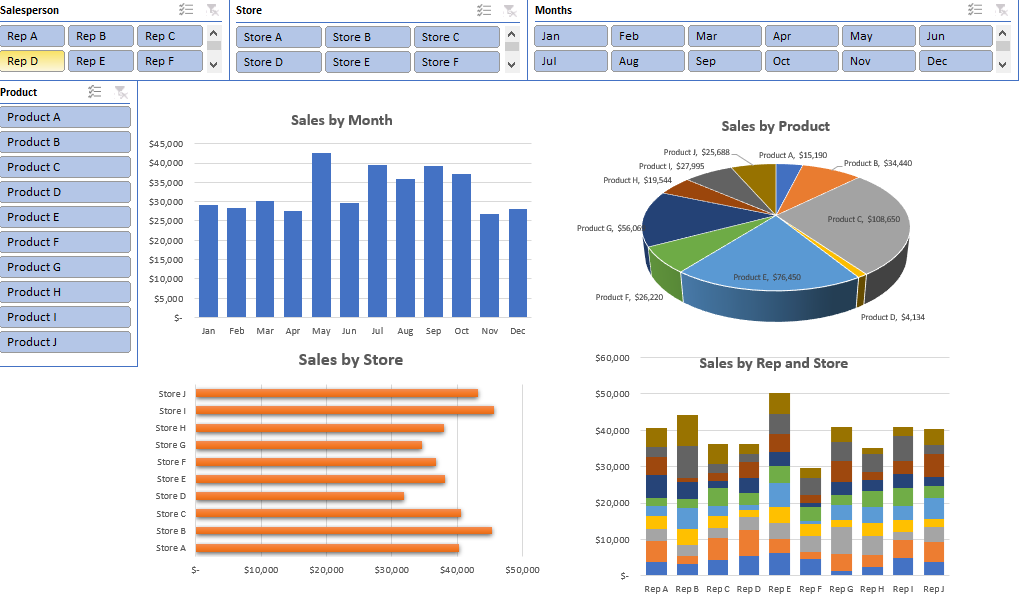
3. Creating dynamic dashboards
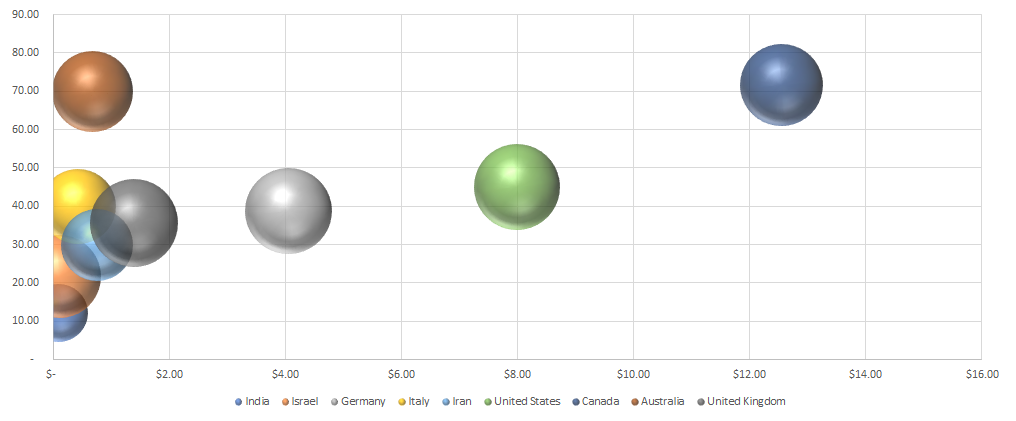
Dashboards are incredibly popular but they can be complex to set up. Then there’s also the challenge of updating it and making sure the data is up-to-date. It can easily take you hours every time to make sure the information is accurate.
However, in this post, I show you how to create a dynamic dashboard that not only won’t take you hours but that will automatically update as you add data to it. And then, you end up with a report that looks great to send to management to easily review and update.
4. Routine data entry
One of the biggest headaches people can face when using spreadsheets is when they hard-code calculations. A hard-coded calculation is where you don’t reference any cells and just put the result in the cell; it can make it nearly impossible to decipher how that number was calculated (especially if you’re not the person who entered the value). If you go to re-calculate it or update it, you could spend a lot of time just trying to figure out the calculation.
However, by using a formula, there’s no ambiguity as to how a value was calculated. Not only does that save you the time of entering in data but it also makes it easy to correct and update the figure. Ideally, you should minimize the number of places you’re manually entering data into. By doing that, you’ll have a much more robust template where your inputs are kept to a minimum which will eliminate the need for a lot of data entry and your other calculated fields will update automatically. This type of automation doesn’t require complex coding and just needs an Excel spreadsheet to be carefully constructed so that it is efficient and makes the most of formulas.
5. Conditional formatting
Oftentimes you’ll want to color-code your data to highlight things you should be paying attention to. If you’ve got an aged accounts receivable schedule, it is useful to highlight which accounts are more than 90 days overdue. You could manually filter the data and highlight all the cells or rows in red that are overdue, but you can just use conditional formatting to do that for you.
Through conditional formatting, you can create rules to determine when a cell or row should be highlighted in red, when you may want it to be in yellow, or when you may just want to hide the text so that you can easily skip over it. For example, hiding zero values can make it easy to focus on more important numbers.
You can apply many different formatting rules and can even put in a hierarchy to determine if you want to keep applying formatting rules or whether you want to stop if a specific criteria is met. Conditional formatting can be complex but it can be a huge time-saver by allowing you to focus on just the items that are important to you. And once you’ve set up the rules, you don’t need to worry about making changes every time you add new data.
Check out this post to learn about conditional formatting and how you can apply it to your spreadsheet.
6. Updating other workbooks and sheets
If you use multiple workbooks, then another area where you can avoid re-entering data is by linking both workbooks. There are numerous ways that you can do this. One approach involves just linking directly to another worksheet where data will automatically pull from another table.
You can also use the INDIRECT function to reference another worksheet or workbook. Just like with a template, once you set up these formulas and connections, they are there to stay and you can avoid having to manually make changes by yourself.
7. Audit tracking by logging changes
One of the neat features of many Office products is they allow you to track changes that are made. This is normally when you share a workbook with other users. However, through the use of macros, you can have a separate sheet that can tell you which values were changed, when, and by who.
Rather than manually noting these changes or relying on people to make the updates themselves, it doesn’t take much effort through a macro to create a log of what’s been changed.
8. Generating PDFs
One thing many advanced Excel users like to do is to use automation to export reports into PDFs. While there is a way to print to PDF, and it’s particularly easy on the newer versions of Excel, it can be a time-consuming process especially when you need to print out multiple sheets. Here again, with a simple macro, you can auto-generate PDFs and save them in a predefined folder all with the click of a button.
9. Sending emails
Another feature many users like is the ability to use automation to send out emails right from Excel. Through the use of macros, this is also possible. You can create a macro that will enter in the email of the recipient, attach a file, enter the body of the message, and even send the email itself. This can be even set up on a large scale, such as sending out invoices to dozens or hundreds of customers, a process that could easily save you hours worth of work.
10. Just about anything else with VBA
The power of programming in Excel can unlock many different possibilities with what you can automate. Whether it’s using automation to help import data and then manipulating it, creating custom reports, or following a series of complicated steps, there are many tasks in Excel that can be expedited with a few clicks of a button. As long as there’s some logic to the process that you can break into steps, then you can also build that into the code and automate it.
Don’t know where to start? Contact us!
There is significant potential in Excel but not everyone knows how to use automation to make the most of it and to make a spreadsheet as efficient as it can be. You can contact us if you have a certain Excel issue that you need help with or if one of the tasks above has perked your interest and you’d like to learn more. We can help create solutions for you that work efficiently and that can save you many hours, perhaps even days every month.
If you liked this post on 10 Tasks You Can Automate Today, please give this site a like on Facebook and also be sure to check out some of the many templates that we have available for download. You can also follow us on Twitter and YouTube.
Hey Office Insiders community! I’m Nancy Wang, a Product Manager on the Office Scripts team. I’m excited to share that you can now create scripts to automate your spreadsheet tasks in Excel for Windows and Excel for Mac.
Work smarter with Office Scripts
Office Scripts enables you to automate repetitive tasks in your spreadsheet workflows. These scripts help you save time by increasing efficiency and reducing errors in your workflow, and you can even schedule your scripts so that your automations run even while you’re away.
Up until now, you could only create these helpful scripts in Excel on the web. With this update, you can now create and modify scripts in Excel for Windows and Excel for Mac using the Code Editor, as well as view and run scripts in the All Scripts task pane. This work represents the first stage of bringing Office Scripts across platforms and we’re eager to hear your feedback!
How it works
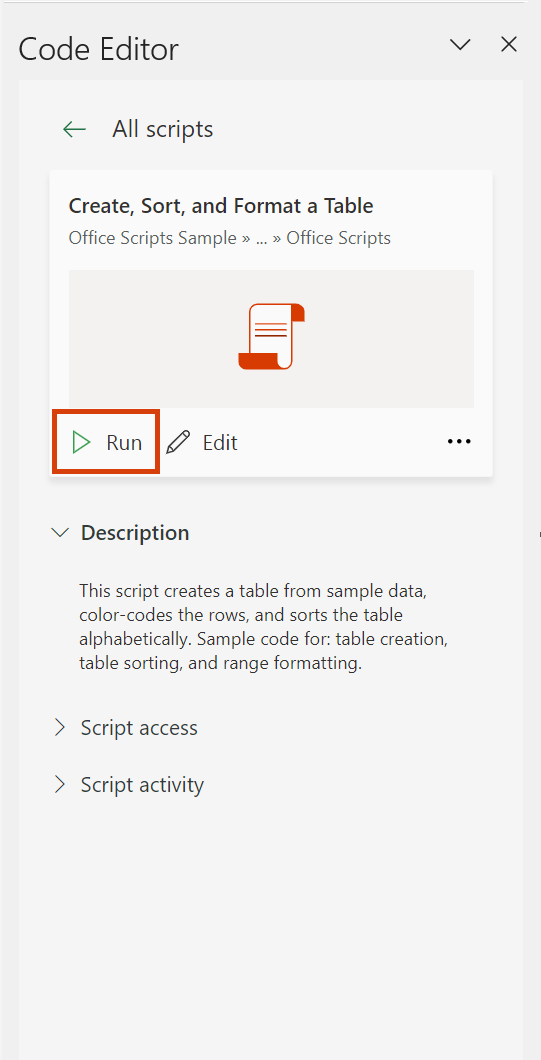
Here are the steps to view and run scripts:
- Open any workbook in Excel for Windows or for Mac and select the Automate tab.
- To run an existing script, select one in the gallery or in the All Scripts task pane.
- In the All Scripts task pane, the gallery or All Scripts button to view more detail.
- To run the script you’ve selected, click the Run button
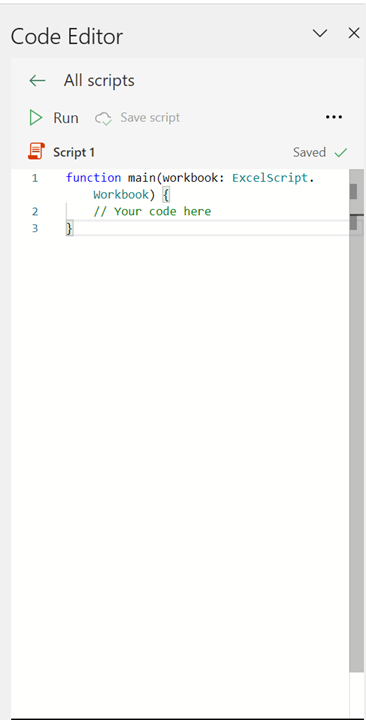
Here are the steps to create and modify scripts:
- Open any workbook in Excel for Windows or for Mac and navigate to the Automate tab. Notice that all the scripts in your workbook are available as well as our samples.

- Start making your own scripts by selecting the New Script button.

- To modify an existing script, select Edit on the script’s details page, or select the pencil icon by hovering over any script in the All Scripts task pane.

To learn more about how to edit and run an Office Script, see our documentation here.
Known Issues
- The Action Recorder, which records the actions you take on a worksheet and saves them into a script for you, remains a web-only feature at this time.
- Office Scripts in Excel for Mac does not support scripts saved to SharePoint at this time.
- Ribbon buttons don’t work when logged in with a non-work/school account, or when completely logged out. To fix this issue, switch to a work or school account as your primary identity (no need to restart Excel).
Requirements
To use Office Scripts in Excel for Windows or Excel for Mac, you must have the following.
- A commercial (E3/E5) license for Microsoft 365.
- For Windows users only: Microsoft Edge WebView2 installed. To learn more, see Microsoft Edge WebView2 and Microsoft 365 Apps.
Availability
This feature is available to Office Insiders running:
- Windows: Version 2209 (Build 15726.20000) or later
- Mac: Version 16.66 (Build 22092601) or later.
Don’t have it yet? It’s probably us, not you.
Features are released over some time to ensure things are working smoothly. We highlight features that you may not have because they’re slowly releasing to larger numbers of Insiders. Sometimes we remove elements to further improve them based on your feedback. Though this is rare, we also reserve the option to pull a feature entirely out of the product, even if you, as an Insider, have had the opportunity to try it.
Feedback
Please select Help > Feedback to submit your feedback about this feature. Include the phrase “Office Scripts” in your feedback to ensure it reaches our team. We’re excited to hear from you!
Learn what other information you should include in your feedback to ensure it’s actionable and reaches the right people. We’re excited to hear from you!
To automate a repetitive task, you can record a macro with the Macro Recorder in Microsoft Excel. Imagine you have dates in random formats and you want to apply a single format to all of them. A macro can do that for you. You can record a macro applying the format you want, and then replay the macro whenever needed.
Contents
- 1 What tasks could be automated in Excel?
- 2 Does Excel automation?
- 3 What programming language works with Excel?
- 4 Can we automate Excel using Python?
- 5 How do I automate in Excel without VBA?
- 6 What is VBA in Excel?
- 7 How do I automatically update data from another sheet in Excel?
- 8 Is Python better than Excel?
- 9 Is Python useful for Excel?
- 10 Is Excel considered coding?
- 11 Is Python better than VBA for Excel?
- 12 How do I write Python code in Excel?
- 13 How do I automate Excel in SQL?
- 14 Is Python easier than VBA?
- 15 What kind of tasks can be automated?
- 16 Is VBA difficult to learn?
- 17 Is VBA worth learning?
- 18 Should I use VBA in Excel?
- 19 How do I automate copying text from Excel and paste it in website?
- 20 Is Macro Express free?
What tasks could be automated in Excel?
Excel Automation: 10 Tasks You Can Automate Today!
- Cleaning and parsing data.
- Creating simple reports.
- Creating dynamic dashboards.
- Routine data entry.
- Conditional formatting.
- Updating other workbooks and sheets.
- Audit tracking by logging changes.
- Generating PDFs.
Does Excel automation?
Excel automation can encrypt the data, compress it, and transfer it to others—regardless of their physical location. Each of these steps is easily automated for safe collaborations. Users often make small errors when transferring data between spreadsheets and other resources.
What programming language works with Excel?
Visual Basic for Applications
VBA is Excel’s built-in programming language (short for Visual Basic for Applications). VBA is stored in the Visual Basic Editor, which is built directly into Excel and other Microsoft Office software.
Can we automate Excel using Python?
You can write Excel formulas through Python the same way you’d write in an Excel sheet. For example, let’s say we wish to sum the data in cells B5 and B6 and show it on cell B7 with the currency style. That’s pretty simple, right? We can repeat that from column B to G or use a for loop to automate it.
How do I automate in Excel without VBA?
How to automate operations in Excel without VBA [Download Tutorial]
- Automate SQL Queries against Excel tables: SELECT, GROUP BY, JOIN ON, etc.
- Automatically unpivot a crosstab table to a flat list.
- Automatically export an Excel table to a CSV file.
- Automatically extract data from other Excel or CSV files.
What is VBA in Excel?
Visual Basic for Applications is a computer programming language developed and owned by Microsoft. With VBA you can create macros to automate repetitive word- and data-processing functions, and generate custom forms, graphs, and reports. VBA functions within MS Office applications; it is not a stand-alone product.
How do I automatically update data from another sheet in Excel?
Automatically refresh data at regular intervals
- Click a cell in the external data range.
- On the Data tab, in the Connections group, click Refresh All, and then click Connection Properties.
- Click the Usage tab.
- Select the Refresh every check box, and then enter the number of minutes between each refresh operation.
Is Python better than Excel?
Furthermore, it has better efficiency and scalability. Python is faster than Excel for data pipelines, automation and calculating complex equations and algorithms. Python is free! Although no programming language costs money to use, Python is free in another sense: it’s open-source.
Is Python useful for Excel?
Python Is Powerful
Python and Excel can handle similar functions when it comes to automating, but Python is capable of handling much larger volumes of data than Excel. Calculations are faster and formulas can be more complex and specific compared to Excel’s VBA.
Is Excel considered coding?
It’s also the world’s most widely used programming language. Excel formulas are written by an order of magnitude more users than all the C, C++, C#, Java, and Python programmers in the world combined. Despite its success, considered as a programming language Excel has fundamental weaknesses.
Is Python better than VBA for Excel?
Python is better than VBA for data analysis because it is more powerful and cleaner. Data analysis using Python also provides better version control. VBA is only suitable for simple Excel automation as it’s built for that. If you want to do anything more complex, you are better off using Python.
How do I write Python code in Excel?
Create a basic excel file
- Import Xlsxwrite module.
- Creates a workbook Welcome.xlsx in the C:temp folder.
- Add a new worksheet in this workbook.
- Writes the text ‘Welcome to Python’ in the A1 column.
- Closes the workbook.
How do I automate Excel in SQL?
Create Record Source
- Collect SQL Server Login Parameters (Server, Database, UID and PWD)
- Get the path to the .sql file with the Query SQL.
- Validate existence of both the file and the SQL Server.
- Use VBA to extract the text from your saved query .
- Create a Microsoft Access SQL Passthrough Query.
Is Python easier than VBA?
Python is easier to learn and master, unlike Excel, which includes a personalized language known as VBA that is complex to master and execute. Transitioning from Excel to Python enables users to enjoy various benefits, such as an open-source coding platform, many volunteer contributors, and free libraries.
What kind of tasks can be automated?
14 Business Tasks That Can Be Automated
- Scheduling appointments.
- Master your to-do-list.
- Sorting and responding to emails.
- Posting to social media.
- Filling out online forms.
- Data back-up.
- Recruiting and hiring.
- Creating proposals.
Is VBA difficult to learn?
With the right training, learning Microsoft VBA is easy. The Microsoft VBA Introduction course makes it easy to learn VBA primarily for Excel. There’s also an Advanced VBA training course if you’re looking for a higher difficulty level.
Is VBA worth learning?
VBA is worth learning if you plan to work mostly with MS-office programs and want to automate the Excel process and exchange data to and from Office applications. If you want to focus on a broader work environment, other languages such as Python could be more useful.
Should I use VBA in Excel?
VBA is not only useful to individuals, but also to corporate users. Companies can use the VBA programming language to automate key business procedures and internal processes.
How do I automate copying text from Excel and paste it in website?
There is no browser involved (except the one builtin and hidden in Excel.) If I understand your situation, you copy data from an internal website and paste it into an Excel spreadsheet. If this is the case, the internal website is a datasource to Excel (on the Data tab).
Is Macro Express free?
Macro Express 5 – Free download and software reviews – CNET Download.