
There
are two basic types of means with the help of which grammatical forms
are built: synthetical and analytical. Synthetical (synthetic)
grammatical forms are built by means of the morphemic composition of
the word. This includes the morphemic means, which were described in
the previous unit: outer inflexion with the help of adding
grammatical suffixes to the stems of the words, e.g.: cat — cats;
inner inflexion, or vowel interchange inside the root, e.g.: goose —
geese; and suppletivity, when different roots are combined within the
same paradigm, e.g.: go – went. Analytical grammatical forms are
built by the combination of the notional word with auxiliary words,
e.g.: come — have come. Analytical forms consist of two words which
together express one grammatical meaning; in other words, they are
grammatically idiomatic: the meaning of the grammatical form is not
immediately dependent on the meanings of its parts. Analytical
grammatical forms are intermediary between words and
word-combinations. Some analytical forms are closer to a word,
because the two parts are inseparable in their grammatical
idiomatism; for example, the forms of the perfect aspect: come — have
come. The components of some other analytical forms are more
independent semantically, and they are less idiomatic grammatically;
for example, the degrees of comparison: beautiful — more beautiful –
most beautiful. Such combinations of an auxiliary component and a
basic component are treated by some linguists as free
word-combinations, but as they are correlative members of grammatical
paradigms and express some specific grammatical meaning, they should
be recognized as analytical grammatical forms too. Some lexical means
regularly involved in the expression of common grammatical meanings
can also be regarded as marginal cases of suppletivity or specific
analytical forms, e.g.: the use of quantifiers with uncountable nouns
or repetition groups – a bit of joy, the last two items of news,
thousands and thousands, etc.
Analytical
grammatical forms are prevalent in English; modern English is an
analytical type of language.
Types
of word-form derivation
These
fall under two main headings:
(a)
those limited to changes in the body of the word, without having
recourse
to auxiliary words (synthetic types),
(b)
those implying the use of auxiliary words (analytical types).
Besides,
there are a few special cases of different forms of a word
being
derived from altogether different stems.
5
Synthetic
Types
The
number of morphemes used for deriving word-forms in Modern
English
is very small (much smaller than either in German or in Russian,
for
instance.
There
is the ending -s
(-es), with
three variants of pronunciation and
the
endings -en
and
-ren,
in
one or two words each, viz. oxen,
brethren
(poet.),
children.
There
is the ending -‘s,
with the same three variants of pronunciation as
for
the plural ending, used to form what is generally termed the genitive
case of
nouns.
For
adjectives, there are the endings -er
and
-est
for
the degrees of
comparison.
For
verbs, there is the ending -s
(-es) for
the third person singular
present
indicative, with the same three variants of pronunciation noted above
for
nouns, the ending -d
(-ed) for
the past tense of certain verbs (with three
variants
of pronunciation, again), the ending -d
(ed) for
the second participle
of
certain verbs, the ending -n
(-en) for
the second participle of certain other
verbs,
and the ending -ing
for
the first participle and also for the gerund.
Thus
the total number of morphemes used to derive forms of words is
eleven
or twelve, which is much less than the number found in languages
of
a mainly synthetical structure.
It
should also be noted that most of these endings are mono-semantic,
in
the sense that they denote only one grammatical category and not two
or
three
(or more) at a time, as is the case in synthetic languages. For
example,
the plural -s
(or
-es)
denotes
only the category of plural number, and
has
nothing to do with any other grammatical category, such as case.
Sound
Alternations
Sound
alternations are a way of expressing grammatical categories which
consists
in changing a sound inside the root. This method appears in Modern
English,
for example, in nouns, as when the root vowel [au] of mouse
is
changed
into [aı] in mice,
etc.
This
method is much more extensively used in verbs, such as write
—
wrote
—
written,
sing — sang —
sung,
meet — met —
met,
etc.
On the whole,
vowel
alternation does play some part among the means of expressing
grammatical
categories, though its part in Modern English has been much
reduced
as compared to Old English.
Analytical
Types
These
consist in using a word (devoid of any lexical meaning of its
own)
to express some grammatical category of another word.
There
can be no doubt in Modern English about the analytical character of
such
formations as, e. g., has
invited or
is
invited, or
is
inviting, or
does
not
invite.
The
verbs have,
be, and
do
have
no lexical meaning of their own in
these
cases. The lexical meaning of the formation resides in the participle
or
infinitive
following the verb have,
be or
do.
Some
doubt has been expressed
about
the formations shall
invite and
will
invite. There
is a view that shall
and
will
have
a lexical meaning.
While
the existence of analytical forms of the English verb cannot be
disputed,
the existence of such forms in adjectives and adverbs is not
nowadays
universally recognised. The question whether such formations as
more
vivid, the most vivid, or,
again, more
vividly and
most
vividly are
or
are
not analytical forms of degrees of comparison of vivid
and
vividly,
is
controversial.
We can only say here that if these formations are recognised as
analytical
forms of degrees of comparison, the words more
and
most
have
to
be
numbered among the analytical means of morphology.
Соседние файлы в предмете [НЕСОРТИРОВАННОЕ]
- #
- #
- #
- #
- #
- #
- #
- #
- #
- #
- #
Word for Microsoft 365 Word for Microsoft 365 for Mac Word 2021 Word 2021 for Mac Word 2019 Word 2019 for Mac Word 2016 Word 2016 for Mac Word 2013 Word 2010 Word for Mac 2011 More…Less
To create a form in Word that others can fill out, start with a template or document and add content controls. Content controls include things like check boxes, text boxes, date pickers, and drop-down lists. If you’re familiar with databases, these content controls can even be linked to data.
Show the Developer tab
If the developer tab isn’t displayed in the ribbon, see Show the Developer tab.
Open a template or a blank document on which to base the form
To save time, start with a form template or start from scratch with a blank template.
-
Go to File > New.
-
In Search online templates, type Forms or the type of form you want and press ENTER.
-
Choose a form template, and then select Create or Download.
-
Go to File > New.
-
Select Blank document.
Add content to the form
Go to Developer, and then choose the controls that you want to add to the document or form. To remove a content control, select the control and press Delete. You can set properties on controls once inserted.
Note: You can print a form that was created using content controls, but the boxes around the content controls will not print.
In a rich text content control, users can format text as bold or italic, and they can type multiple paragraphs. If you want to limit what users add, insert the plain text content control.
-
Click or tap where you want to insert the control.
-
Select Developer > Rich Text Content Control
 or Plain Text Content Control .
 or Plain Text Content Control
  .
.To set specific properties on the control, see Set or change properties for content controls.
A picture control is often used for templates, but you can also add a picture control to a form.
-
Click or tap where you want to insert the control.
-
Select Developer > Picture Content Control
.
 .
.To set specific properties on the control, see Set or change properties for content controls.
Use building block controls when you want people to choose a specific block of text. For example, building block controls are helpful when you need to add different boilerplate text depending on the contract’s specific requirements. You can create rich text content controls for each version of the boilerplate text, and then you can use a building block control as the container for the rich text content controls.
-
Click or tap where you want to insert the control.
-
Go to DeveloperBuilding Block Gallery Content Control
(or Building Block Content Control). -
Select Developer and content controls for the building block.
 (or Building Block Content Control).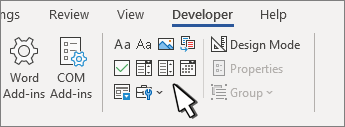
-
Click or tap where you want to insert the control.
To set specific properties on the control, see Set or change properties for content controls.
In a combo box, users can select from a list of choices that you provide or they can type in their own information. In a drop-down list, users can only select from the list of choices.
-
Go to Developer > Combo Box Content Control
or Drop-Down List Content Control . -
Select the content control, and then select Properties.
-
To create a list of choices, select Add under Drop-Down List Properties.
-
Type a choice in Display Name, such as Yes, No, or Maybe.
Repeat this step until all of the choices are in the drop-down list.
-
Fill in any other properties that you want.
Note: If you select the Contents cannot be edited check box, users won’t be able to click a choice.
 or Drop-Down List Content Control
  .
.-
Click or tap where you want to insert the date picker control.
-
Select Developer > Date Picker Content Control
.
 .
.To set specific properties on the control, see Set or change properties for content controls.
-
Click or tap where you want to insert the check box control.
-
Select Developer > Check Box Content Control
.
 .
.To set specific properties on the control, see Set or change properties for content controls.
Legacy form controls are for compatibility with older versions of Word and consist of legacy form and Active X controls.
-
Click or tap where you want to insert a legacy control.
-
Go to Developer > Legacy Forms
drop-down. -
Select the Legacy Form control or Active X Control that you want to include.
 drop-down.
Set or change properties for content controls
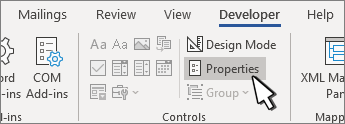
Each content control has properties that you can set or change. For example, the Date Picker control offers options for the format you want to use to display the date.
-
Select the content control that you want to change.
-
Go to Developer > Properties.
-
Change the properties that you want.
Add protection to a form
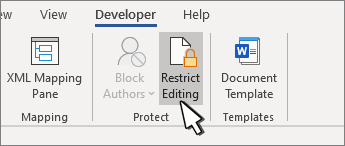
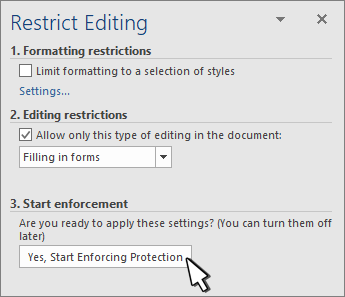
If you want to limit how much others can edit or format a form, use the Restrict Editing command:
-
Open the form that you want to lock or protect.
-
Select Developer > Restrict Editing.
-
After selecting restrictions, select Yes, Start Enforcing Protection.
Advanced Tip:
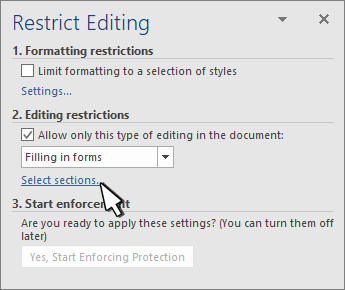
If you want to protect only parts of the document, separate the document into sections and only protect the sections you want.
To do this, choose Select Sections in the Restrict Editing panel. For more info on sections, see Insert a section break.
Show the Developer tab
If the developer tab isn’t displayed in the ribbon, see Show the Developer tab.
Open a template or use a blank document
To create a form in Word that others can fill out, start with a template or document and add content controls. Content controls include things like check boxes, text boxes, and drop-down lists. If you’re familiar with databases, these content controls can even be linked to data.
-
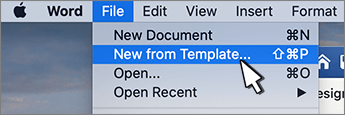
Go to File > New from Template.
-
In Search, type form.
-
Double-click the template you want to use.
-
Select File > Save As, and pick a location to save the form.
-
In Save As, type a file name and then select Save.
-
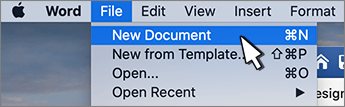
Go to File > New Document.
-
Go to File > Save As.
-
In Save As, type a file name and then select Save.
Add content to the form
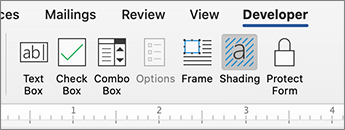
Go to Developer, and then choose the controls that you want to add to the document or form. To remove a content control, select the control and press Delete. You can set Options on controls once inserted. From Options, you can add entry and exit macros to run when users interact with the controls, as well as list items for combo boxes, .
-
In the document, click or tap where you want to add a content control.
-
On Developer, select Text Box, Check Box, or Combo Box.
-
To set specific properties for the control, select Options, and set .
-
Repeat steps 1 through 3 for each control that you want to add.
Options let you set common settings, as well as control specific settings. Select a control and then select Options to set up or make changes.
-
Set common properties.
-
Select Macro to Run on lets you choose a recorded or custom macro to run on Entry or Exit from the field.
-
Bookmark Set a unique name or bookmark for each control.
-
Calculate on exit This forces Word to run or refresh any calculations, such as total price when the user exits the field.
-
Add Help Text Give hints or instructions for each field.
-
OK Saves settings and exits the panel.
-
Cancel Forgets changes and exits the panel.
-
-
Set specific properties for a Text box
-
Type Select form Regular text, Number, Date, Current Date, Current Time, or Calculation.
-
Default text sets optional instructional text that’s displayed in the text box before the user types in the field. Set Text box enabled to allow the user to enter text into the field.
-
Maximum length sets the length of text that a user can enter. The default is Unlimited.
-
Text format can set whether text automatically formats to Uppercase, Lowercase, First capital, or Title case.
-
Text box enabled Lets the user enter text into a field. If there is default text, user text replaces it.
-
-
Set specific properties for a Check box.
-
Default Value Choose between Not checked or checked as default.
-
Checkbox size Set a size Exactly or Auto to change size as needed.
-
Check box enabled Lets the user check or clear the text box.
-
-
Set specific properties for a Combo box
-
Drop-down item Type in strings for the list box items. Press + or Enter to add an item to the list.
-
Items in drop-down list Shows your current list. Select an item and use the up or down arrows to change the order, Press — to remove a selected item.
-
Drop-down enabled Lets the user open the combo box and make selections.
-
-
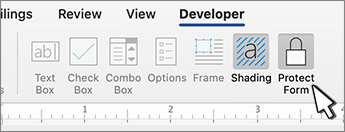
Go to Developer > Protect Form.
Note: To unprotect the form and continue editing, select Protect Form again.
-
Save and close the form.
If you want, you can test the form before you distribute it.
-
Protect the form.
-
Reopen the form, fill it out as the user would, and then save a copy.
Show the Developer tab
-
On the right side of the ribbon, select
, and then select Ribbon Preferences. -
Under Customize, select Developer .
 , and then select Ribbon Preferences.
Open a template or a document on which to base the form
You can start with a blank document and create your own form. Or, to save time, you can start with a form template.
-
Go to File > New from Template.
-
In the left pane, expand Online Templates, and then select Forms.
-
Double-click the form template that you want to use.
Add content controls to the form
-
In the document, click where you want to add the control.
-
On the Developer tab, under Form Controls, select Text Box, Check Box, or Combo Box.
-
To set specific properties for the control, select Options, and then configure the properties that you want.
Note: To create a list of drop-down items in a combo box, select the combo box placeholder, click Options, and then add the items that you want to appear in the drop-down list.
-
Repeat steps 1 through 3 for each control that you want to add.
Add instructional text (optional)
Instructional text (for example, «Type First Name») in a text box can make your form easier to use. By default, no text appears in a text box, but you can add it.
-
Select the text box control that you want to add instructional text to.
-
On the Developer tab, under Form Controls, select Options.
-
In Default Text, type the instructional text.
-
Make sure that Fill-in enabled is selected, and then select OK.
Protect the form
-
On the Developer tab, under Form Controls, select Protect Form.
Note: To unprotect the form and continue editing, click Protect Form again.
-
Save and close the form.
Test the form (optional)
If you want, you can test the form before you distribute it.
-
Protect the form.
-
Reopen the form, fill it out as the user would, and then save a copy.
Creating fillable forms isn’t available in Word for the web.
You can create the form with the desktop version of Word with the instructions in Create a fillable form.
When you save the document and reopen it in Word for the web, you’ll see the changes you made.
Need more help?
- Размер: 181 Кб
- Количество слайдов: 28
 Word Formation Why study word-formation processes?
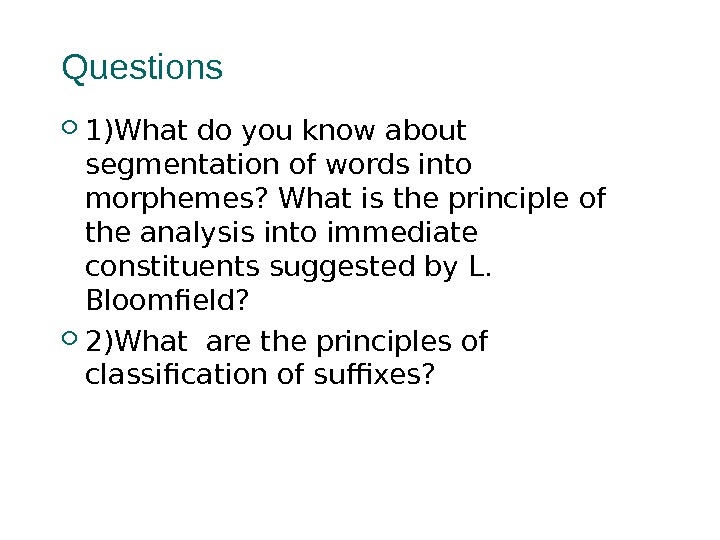 Questions 1)What do you know about segmentation of words into morphemes? What is the principle of the analysis into immediate constituents suggested by L. Bloomfield? 2)What are the principles of classification of suffixes?
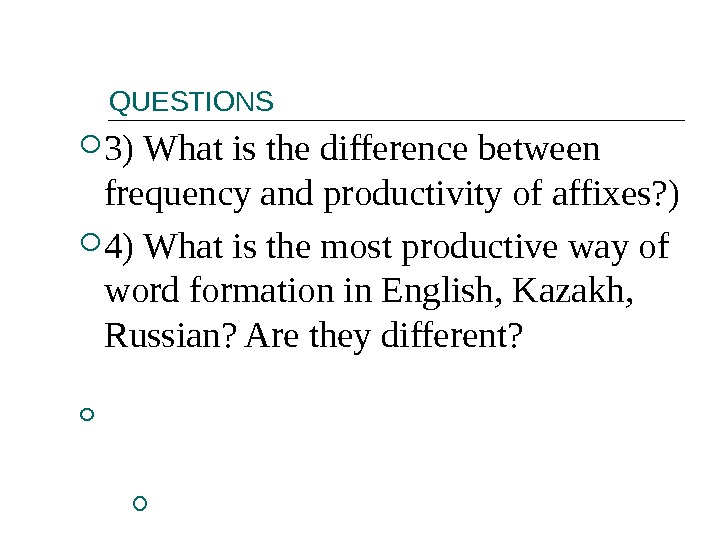 QUESTIONS 3) What is the difference between frequency and productivity of affixes? ) 4) What is the most productive way of word formation in English, Kazakh, Russian? Are they different?
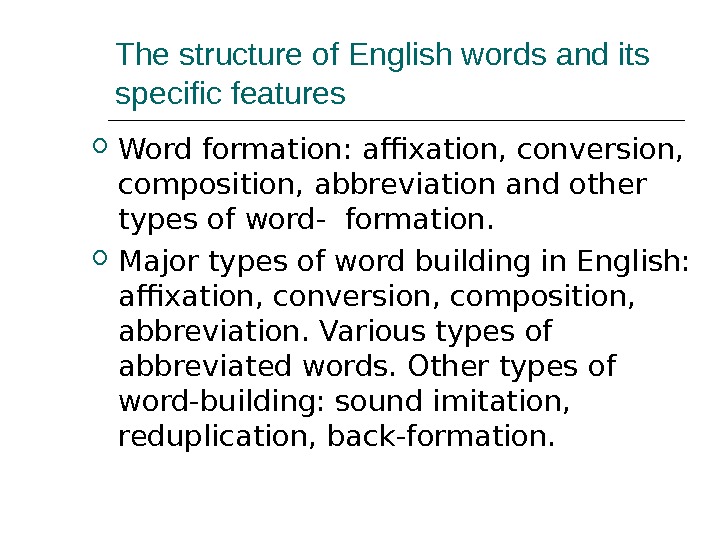 The structure of English words and its specific features Word formation: affixation, conversion, composition, abbreviation and other types of word- formation. Major types of word building in English: affixation, conversion, composition, abbreviation. Various types of abbreviated words. Other types of word-building: sound imitation, reduplication, back-formation.
 Word-formation processes Constituent morphemes. Various devices which are used in English to build up new words from existing ones.
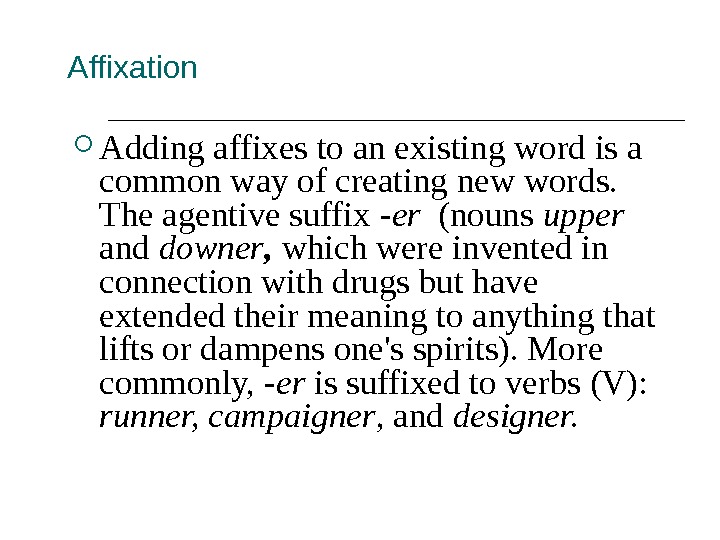 Affixation Adding affixes to an existing word is a common way of creating new words. The agentive suffix -er (nouns upper and downer , which were invented in connection with drugs but have extended their meaning to anything that lifts or dampens one’s spirits). More commonly, -er is suffixed to verbs (V): runner, campaigner , and designer.
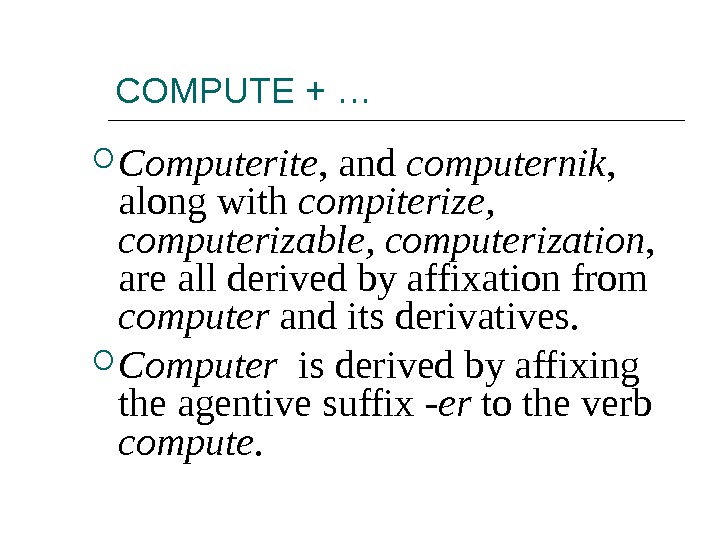 COMPUTE + … Computerite , and computernik , along with compiterize, computerizable, computerization , are all derived by affixation from computer and its derivatives. Computer is derived by affixing the agentive suffix -er to the verb compute.
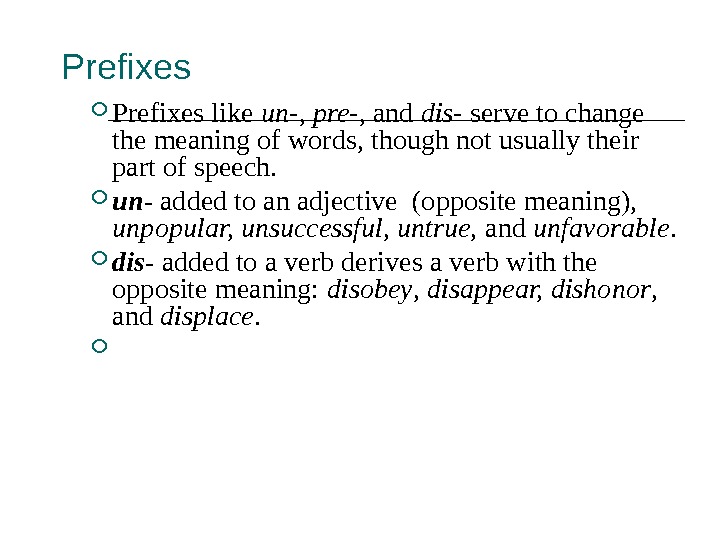 Prefixes like un-, pre-, and dis- serve to change the meaning of words, though not usually their part of speech. un- added to an adjective (opposite meaning), unpopular, unsuccessful, untrue, and unfavorable. dis — added to a verb derives a verb with the opposite meaning: disobey , disappear, dishonor , and displace.
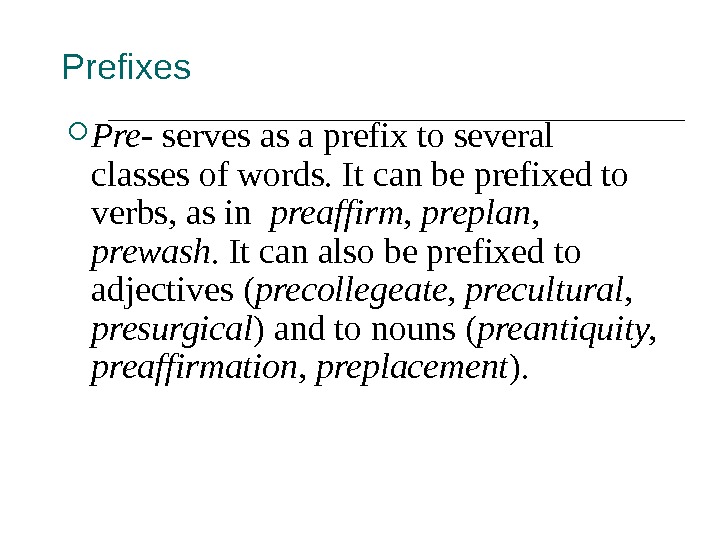 Prefixes Pre- serves as a prefix to several classes of words. It can be prefixed to verbs, as in preaffirm, preplan, prewash. It can also be prefixed to adjectives ( precollegeate, precultural, presurgical ) and to nouns ( preantiquity, preaffirmation, preplacement ).
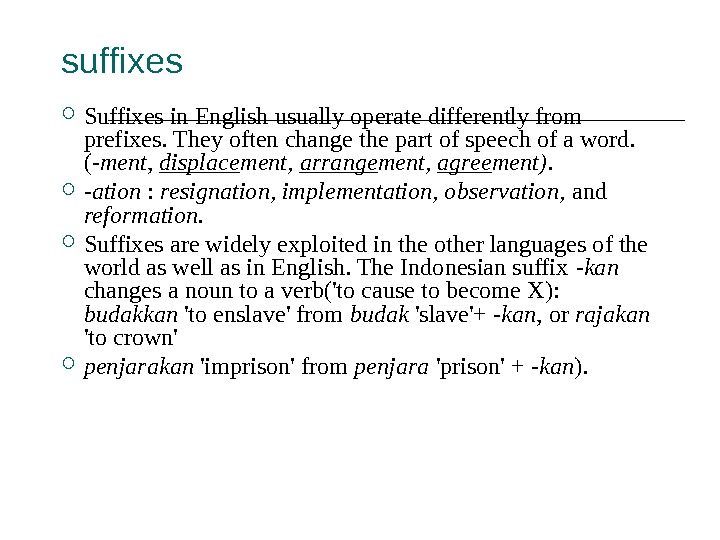 suffixes Suffixes in English usually operate differently from prefixes. They often change the part of speech of a word. ( -ment , displace ment, arrange ment, agree ment). -ation : resignation, implementation, observation, and reformation. Suffixes are widely exploited in the other languages of the world as well as in English. The Indonesian suffix -kan changes a noun to a verb(‘to cause to become X): budakkan ‘to enslave’ from budak ‘slave’+ -kan , or rajakan ‘to crown’ penjarakan ‘imprison’ from penjara ‘prison’ + -kan ).
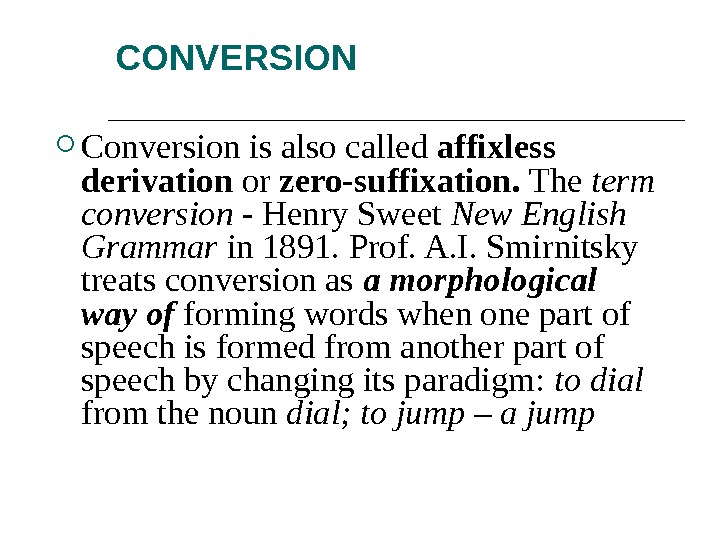 CONVERSION Conversion is also called affixless derivation or zero-suffixation. The term conversion — Henry Sweet New English Grammar in 1891. Prof. A. I. Smirnitsky treats conversion as a morphological way of forming words when one part of speech is formed from another part of speech by changing its paradigm: to dial from the noun dial; to jump – a jump
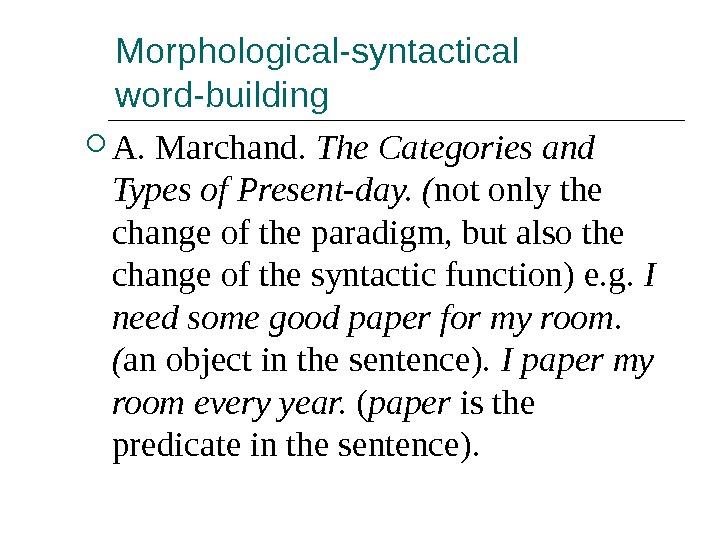 Morphological-syntactical word-building A. Marchand. The Categories and Types of Present-day. ( not only the change of the paradigm, but also the change of the syntactic function) e. g. I need some good paper for my room. ( an object in the sentence). I paper my room every year. ( paper is the predicate in the sentence).
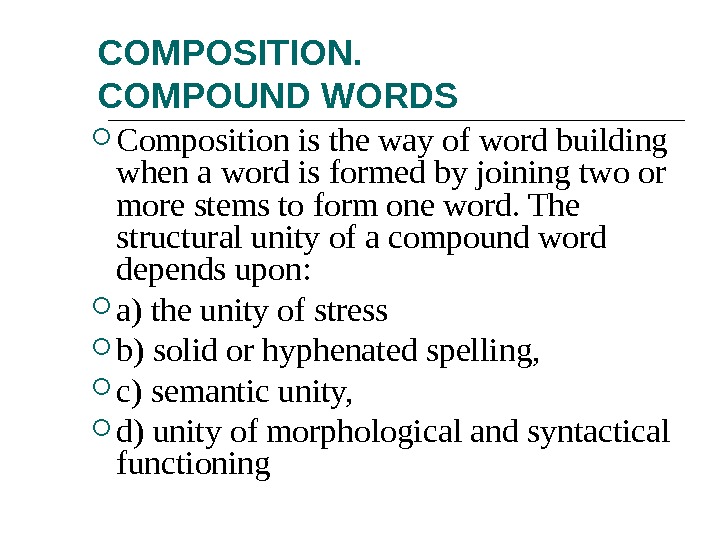 COMPOSITION. COMPOUND WORDS Composition is the way of word building when a word is formed by joining two or more stems to form one word. The structural unity of a compound word depends upon: a) the unity of stress b) solid or hyphenated spelling, c) semantic unity, d) unity of morphological and syntactical functioning
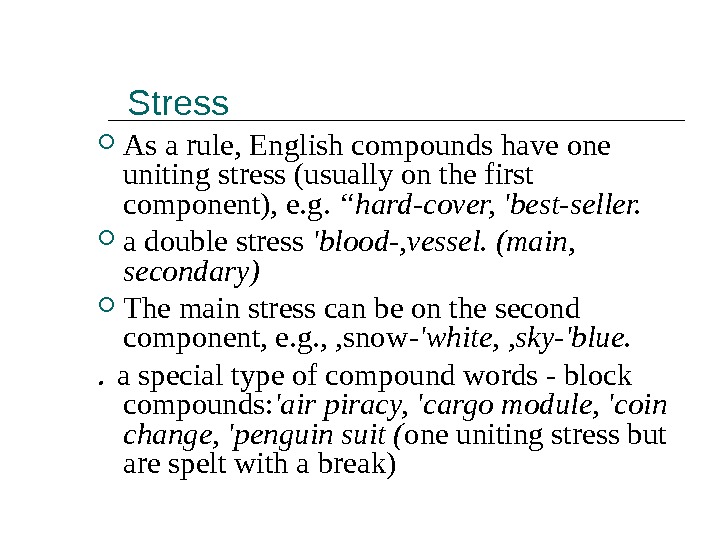 Stress As a rule, English compounds have one uniting stress (usually on the first compo nent), e. g. “hard-cover, ‘best-seller. a double stress ‘blood-, vessel. (main, secondary) The main stress can be on the second component, e. g. , , snow -‘white, , sky-‘blue. . a special type of compound words — block compounds: ‘air piracy, ‘cargo module, ‘coin change, ‘penguin suit ( one uniting stress but are spelt with a break)
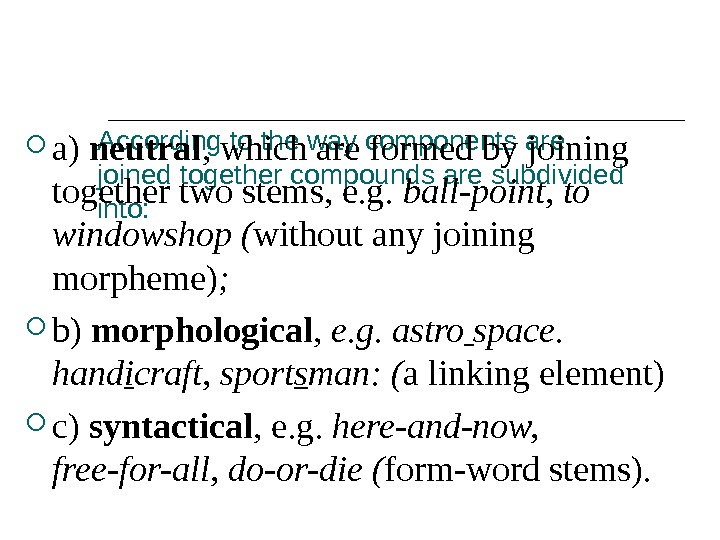 According to the way components are joined together compounds are subdivided into: a) neutral , which are formed by joining together two stems, e. g. ball-point, to windowshop ( without any joining morpheme) ; b) morphological , e. g. astro space. hand i craft, sport s man: ( a linking element) c) syntactical , e. g. here-and-now, free-for-all, do-or- die ( form-word stems).
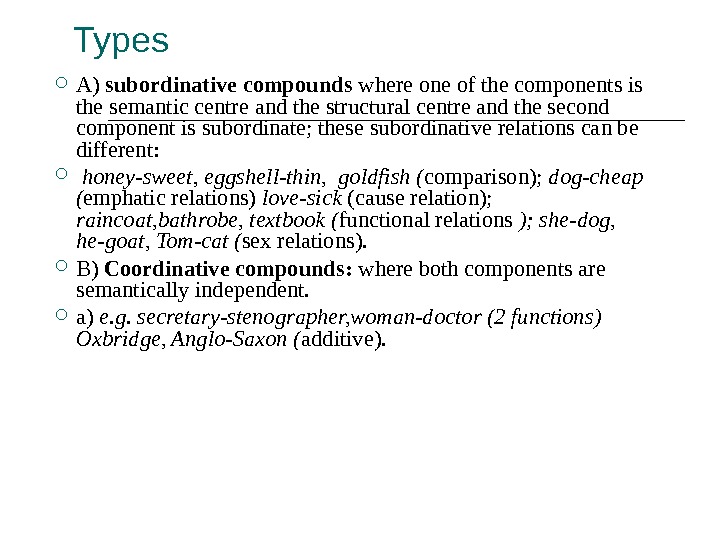 Types A) subordinative compounds where one of the components is the semantic centre and the structural centre and the second component is subordinate; these subordinative relations can be different: honey-sweet , eggshell-thin, goldfish ( comparison); dog-cheap ( emphatic relations) love-sick (cause relation); raincoat, bathrobe, textbook ( functional relations ); she-dog, he-goat, Tom-cat ( sex relations). B) Coordinative compounds: where both components are semantically independent. a) e. g. secretary-stenographer, woman-doctor (2 functions) Oxbridge, Anglo-Saxon ( additive).
 Shortening of words Minor types of word-formation
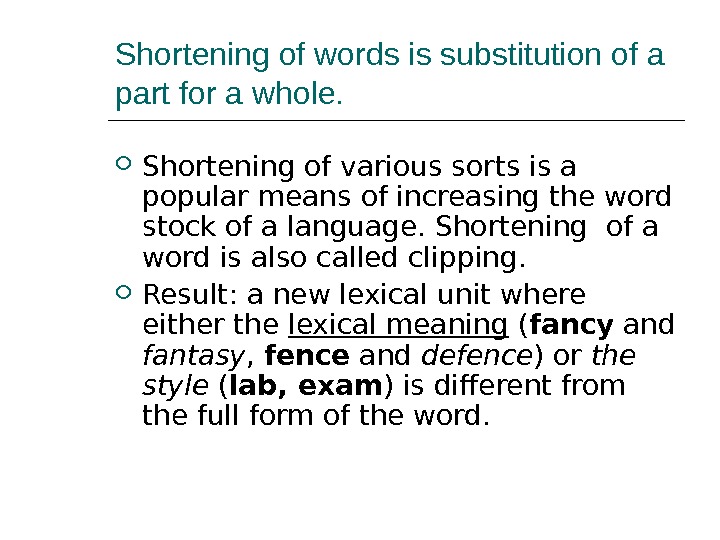 Shortening of words is substitution of a part for a whole. Shortening of various sorts is a popular means of increasing the word stock of a language. Shortening of a word is also called clipping. Result: a new lexical unit where either the lexical meaning ( fancy and fantasy , fence and defence ) or the style ( lab, exam ) is different from the full form of the word.
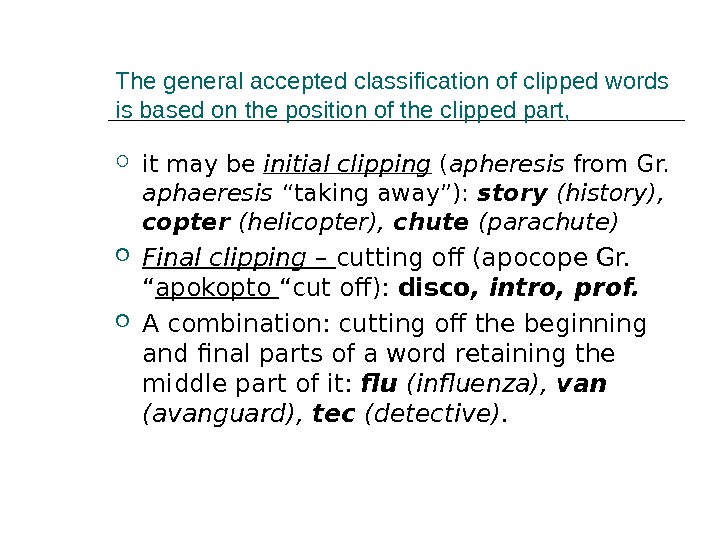 The general accepted classification of clipped words is based on the position of the clipped part, it may be initial clipping ( apheresis from Gr. aphaeresis “taking away”): story (history), copter (helicopter), chute (parachute) Final clipping – cutting off (apocope Gr. “ apokopto “cut off): disco , intro, prof. A combination: cutting off the beginning and final parts of a word retaining the middle part of it: flu (influenza), van (avanguard), tec (detective).
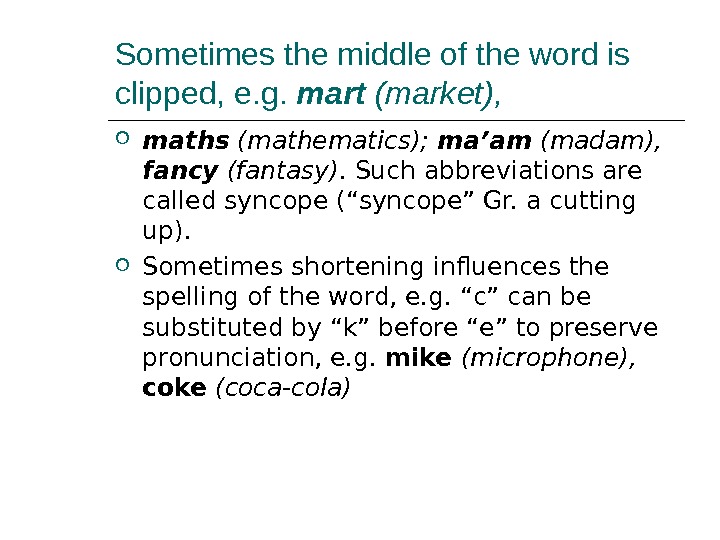 Sometimes the middle of the word is clipped, e. g. mart (market), maths (mathematics); ma’am (madam), fancy (fantasy). Such abbreviations are called syncope (“syncope” Gr. a cutting up). Sometimes shortening influences the spelling of the word, e. g. “c” can be substituted by “k” before “e” to preserve pronunciation, e. g. mike (microphone), coke (coca-cola)
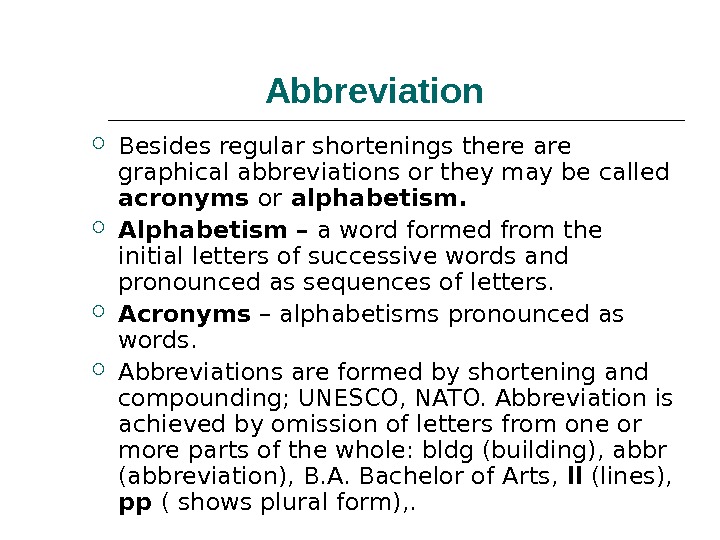 Abbreviation Besides regular shortenings there are graphical abbreviations or they may be called acronyms or alphabetism. Alphabetism – a word formed from the initial letters of successive words and pronounced as sequences of letters. Acronyms – alphabetisms pronounced as words. Abbreviations are formed by shortening and compounding; UNESCO, NATO. Abbreviation is achieved by omission of letters from one or more parts of the whole: bldg (building), abbr (abbreviation), B. A. Bachelor of Arts, ll (lines), pp ( shows plural form), .
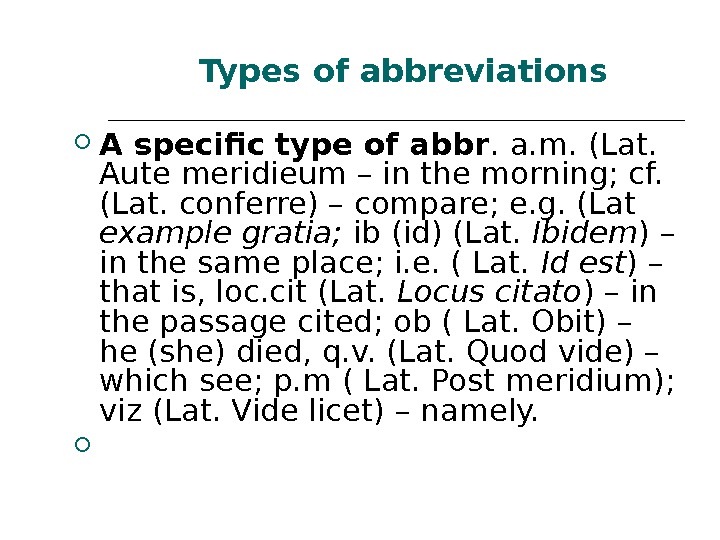 A specific type of abbr. a. m. (Lat. Aute meridieum – in the morning; cf. (Lat. conferre) – compare; e. g. (Lat example gratia; ib (id) (Lat. Ibidem ) – in the same place; i. e. ( Lat. Id est ) – that is, loc. cit (Lat. Locus citato ) – in the passage cited; ob ( Lat. Obit) – he (she) died, q. v. (Lat. Quod vide) – which see; p. m ( Lat. Post meridium); viz (Lat. Vide licet) – namely. Types of abbreviations
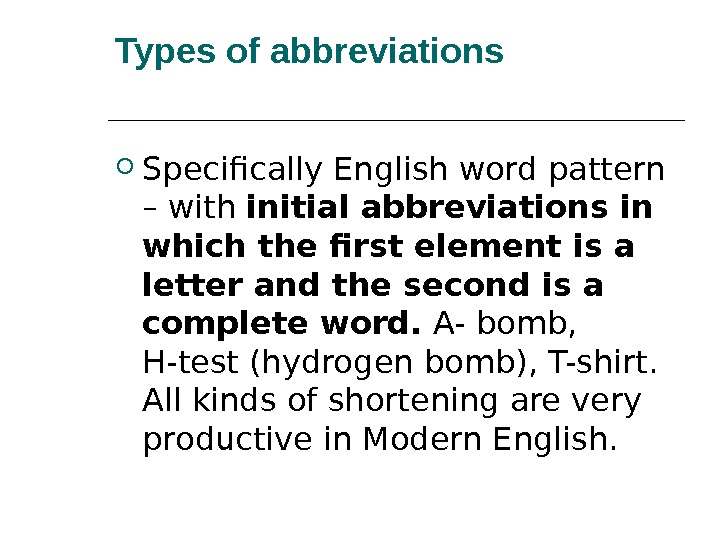 Types of abbreviations Specifically English word pattern – with initial abbreviations in which the first element is a letter and the second is a complete word. A- bomb, H-test (hydrogen bomb), T-shirt. All kinds of shortening are very productive in Modern English.
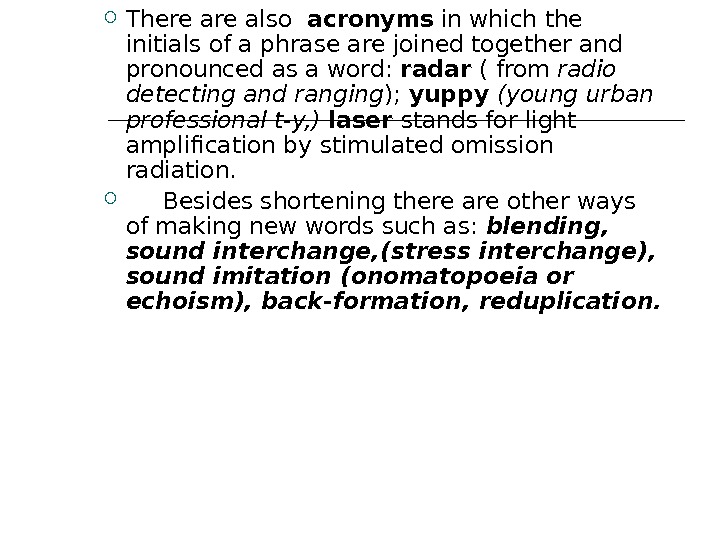 There also acronyms in which the initials of a phrase are joined together and pronounced as a word: radar ( from radio detecting and ranging ); yuppy (young urban professional t-y, ) laser stands for light amplification by stimulated omission radiation. Besides shortening there are other ways of making new words such as: blending, sound interchange, (stress interchange), sound imitation (onomatopoeia or echoism), back-formation, reduplication.
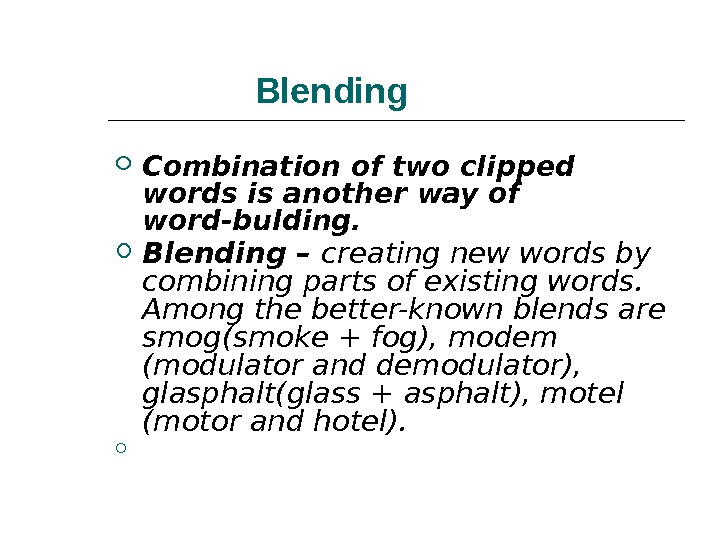 Blending Combination of two clipped words is another way of word-bulding. Blending – creating new words by combining parts of existing words. Among the better-known blends are smog(smoke + fog), modem (modulator and demodulator), glasphalt(glass + asphalt), motel (motor and hotel).
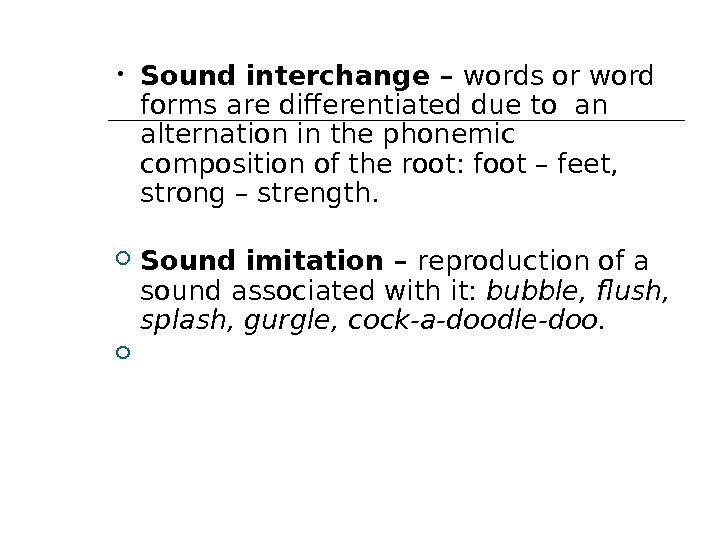 • Sound interchange – words or word forms are differentiated due to an alternation in the phonemic composition of the root: foot – feet, strong – strength. Sound imitation – reproduction of a sound associated with it: bubble, flush, splash, gurgle, cock-a-doodle-doo.
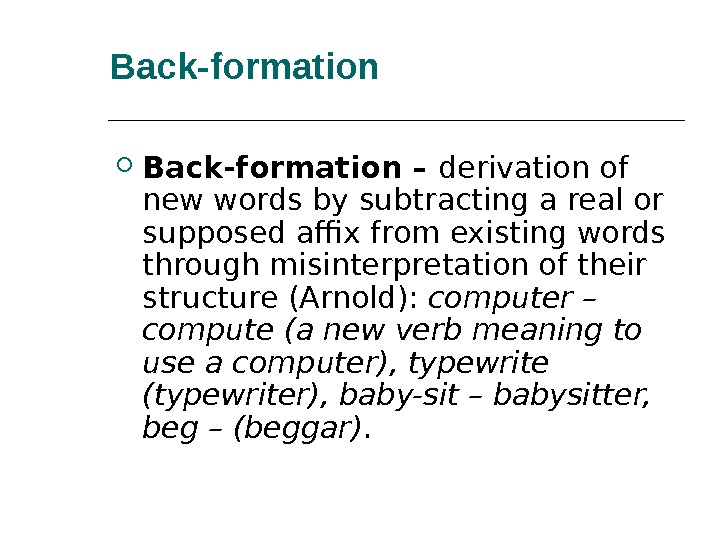 Back-formation – derivation of new words by subtracting a real or supposed affix from existing words through misinterpretation of their structure (Arnold): computer – compute (a new verb meaning to use a computer), typewrite (typewriter), baby-sit – babysitter, beg – (beggar).
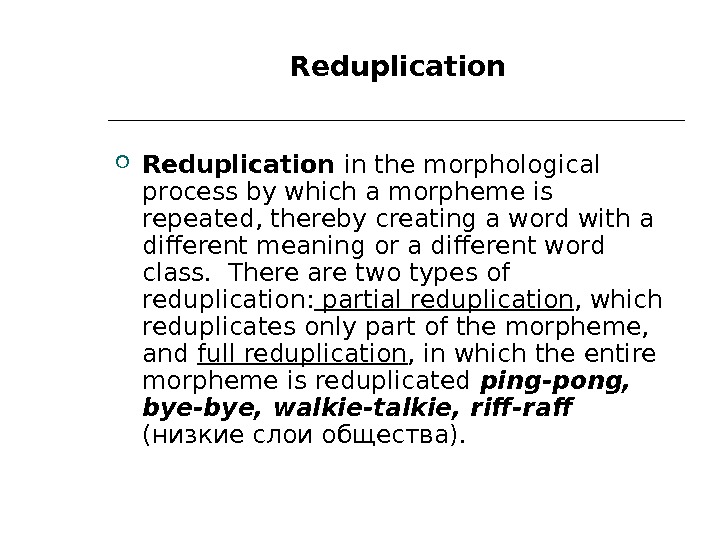 Reduplication in the morphological process by which a morpheme is repeated, thereby creating a word with a different meaning or a different word class. There are two types of reduplication: partial reduplication , which reduplicates only part of the morpheme, and full reduplication , in which the entire morpheme is reduplicated ping-pong, bye-bye, walkie-talkie, riff-raff ( низкие слои общества ). Reduplication
Definitions of word form
-
noun
the phonological or orthographic sound or appearance of a word that can be used to describe or identify something
-
synonyms:
descriptor, form, signifier
see moresee less-
types:
- show 9 types…
- hide 9 types…
-
plural, plural form
the form of a word that is used to denote more than one
-
singular, singular form
the form of a word that is used to denote a singleton
-
ghost word
a word form that has entered the language through the perpetuation of an error
-
base, radical, root, root word, stem, theme
(linguistics) the form of a word after all affixes are removed
-
etymon, root
a simple form inferred as the common basis from which related words in several languages can be derived by linguistic processes
-
citation form, entry word, main entry word
the form of a word that heads a lexical entry and is alphabetized in a dictionary
-
abbreviation
a shortened form of a word or phrase
-
acronym
a word formed from the initial letters of the several words in the name
-
apocope
abbreviation of a word by omitting the final sound or sounds
-
type of:
-
word
a unit of language that native speakers can identify
DISCLAIMER: These example sentences appear in various news sources and books to reflect the usage of the word ‘word form’.
Views expressed in the examples do not represent the opinion of Vocabulary.com or its editors.
Send us feedback
EDITOR’S CHOICE
Look up word form for the last time
Close your vocabulary gaps with personalized learning that focuses on teaching the
words you need to know.

Sign up now (it’s free!)
Whether you’re a teacher or a learner, Vocabulary.com can put you or your class on the path to systematic vocabulary improvement.
Get started